MCP Servers In BaseRock
MCP servers in BaseRock are sources of context that allows BaseRock to connect external systems (such as Notion and Atlassian) so it can fetch the information it needs during test orchestration, execution and while generating higher-quality business use cases.
Why MCP Servers matter
MCP Servers are useful in two common scenarios:
1. Validations during test runs
When running service-level or end-to-end tests, you may need to validate outcomes using information that lives outside the API under test. With MCP Servers, BaseRock can fetch the required context during execution to support validations such as:
- Looking up created data in a database (e.g., MongoDB) and verifying it matches expectations
- Fetching information from tools and systems your team uses (e.g., validating setup or expected artifacts)
2. Generating business use cases from requirements
Many teams maintain requirements and acceptance criteria across platforms like Jira, Confluence, or Notion. MCP Servers let BaseRock pull those requirements directly, so you can generate use cases without needing an additional requirements document.
This is especially helpful when extending from integration testing to business use case based end-to-end testing. See: Business Use Case Testing.
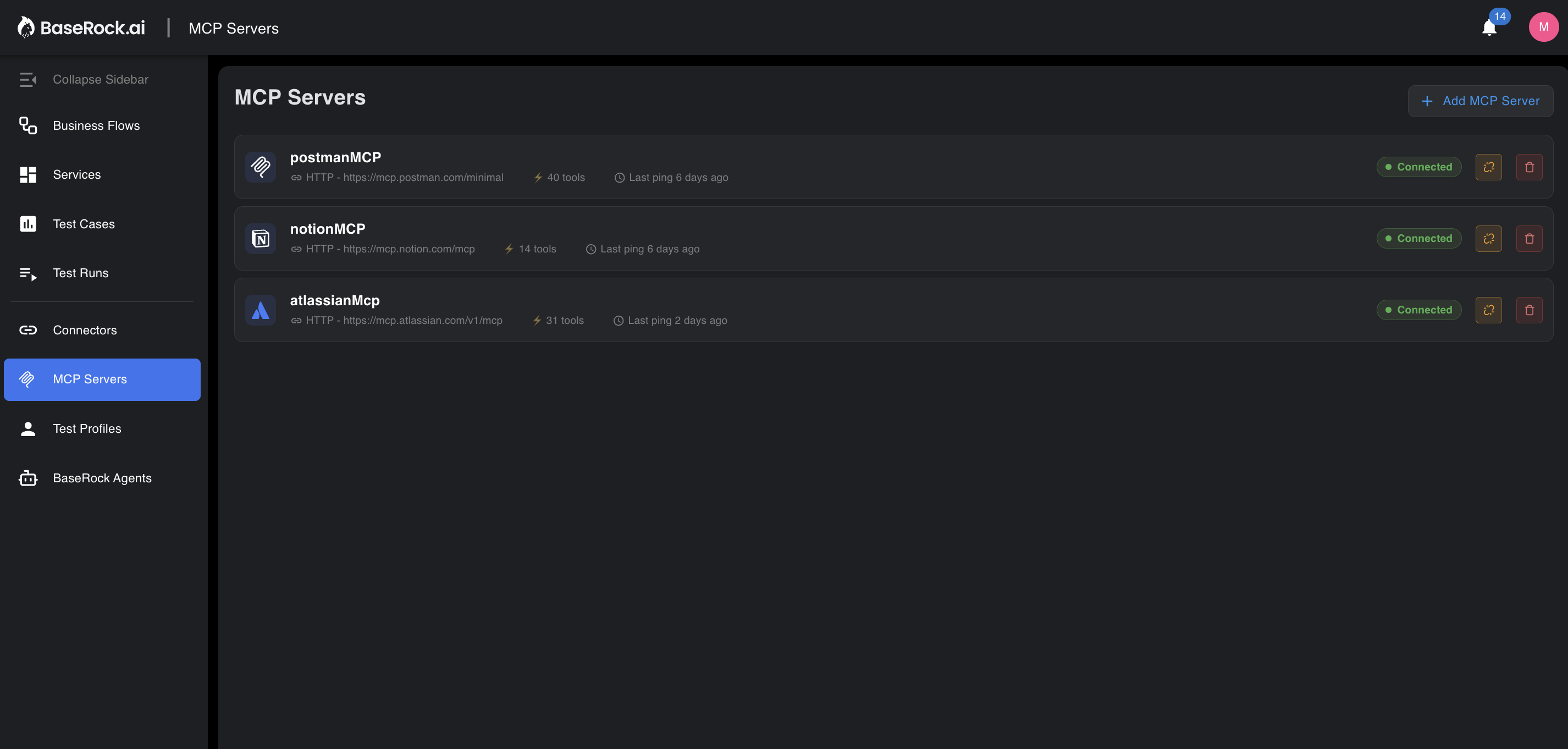
From the MCP Servers section in the left panel as shown below, user can:
- Add and manage integrations for supported providers (e.g., Notion, Atlassian)
- Add any other server by providing a Custom URL
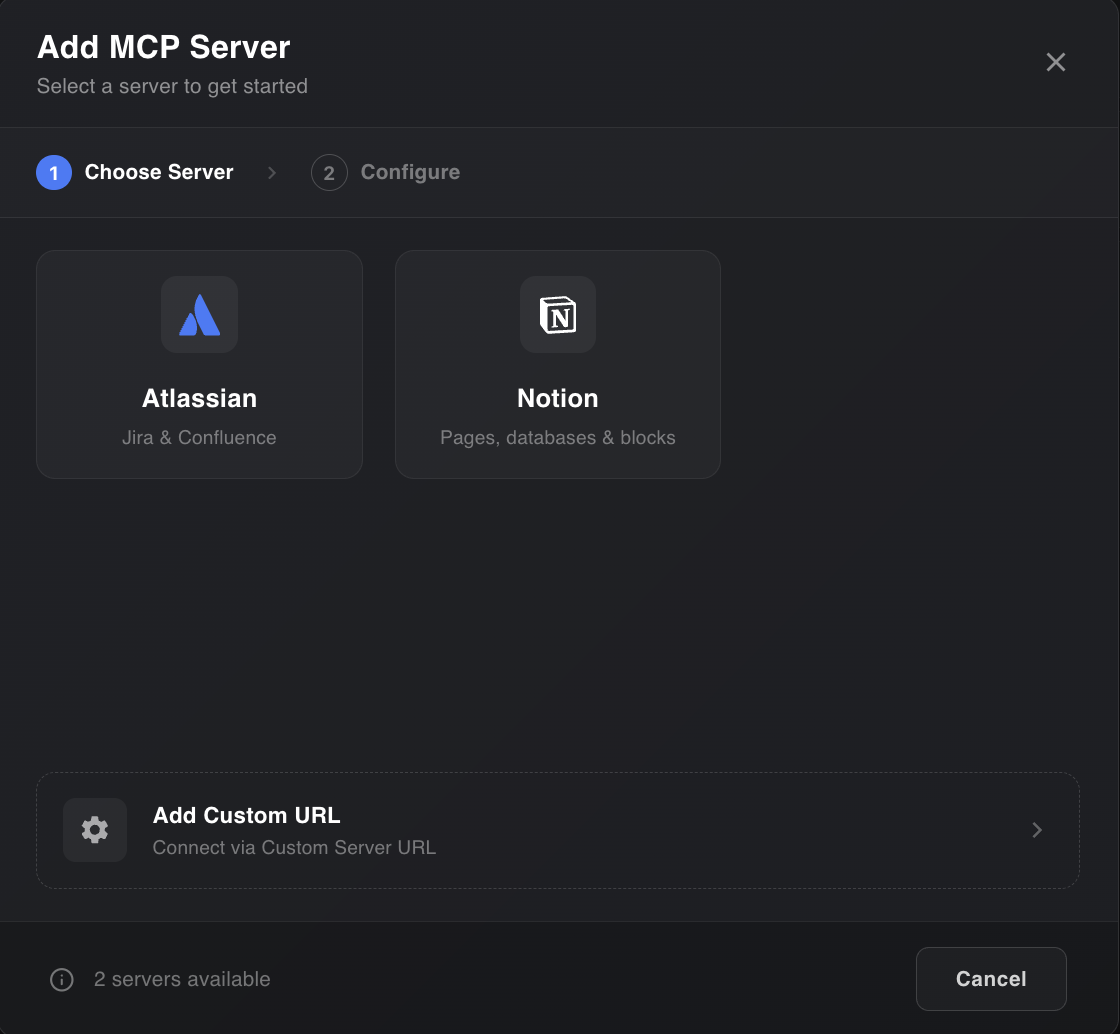
Add an MCP Server
- Open the MCP Servers section from the left panel.
- Click Add MCP Server (top-left).
- In the Add MCP Server window, either:
- Select an existing integration (e.g., Notion, Atlassian), or
- Choose Add custom URL to connect any server.
Add custom URL
When adding a custom MCP Server, BaseRock asks for:
- Display name
- Server URL
You can use Discover to validate the server URL. If authentication is required, BaseRock will prompt for the relevant authentication mechanism.
Note
If the selected MCP Server requires authentication, make sure you have the required credentials and permissions for that provider before connecting.
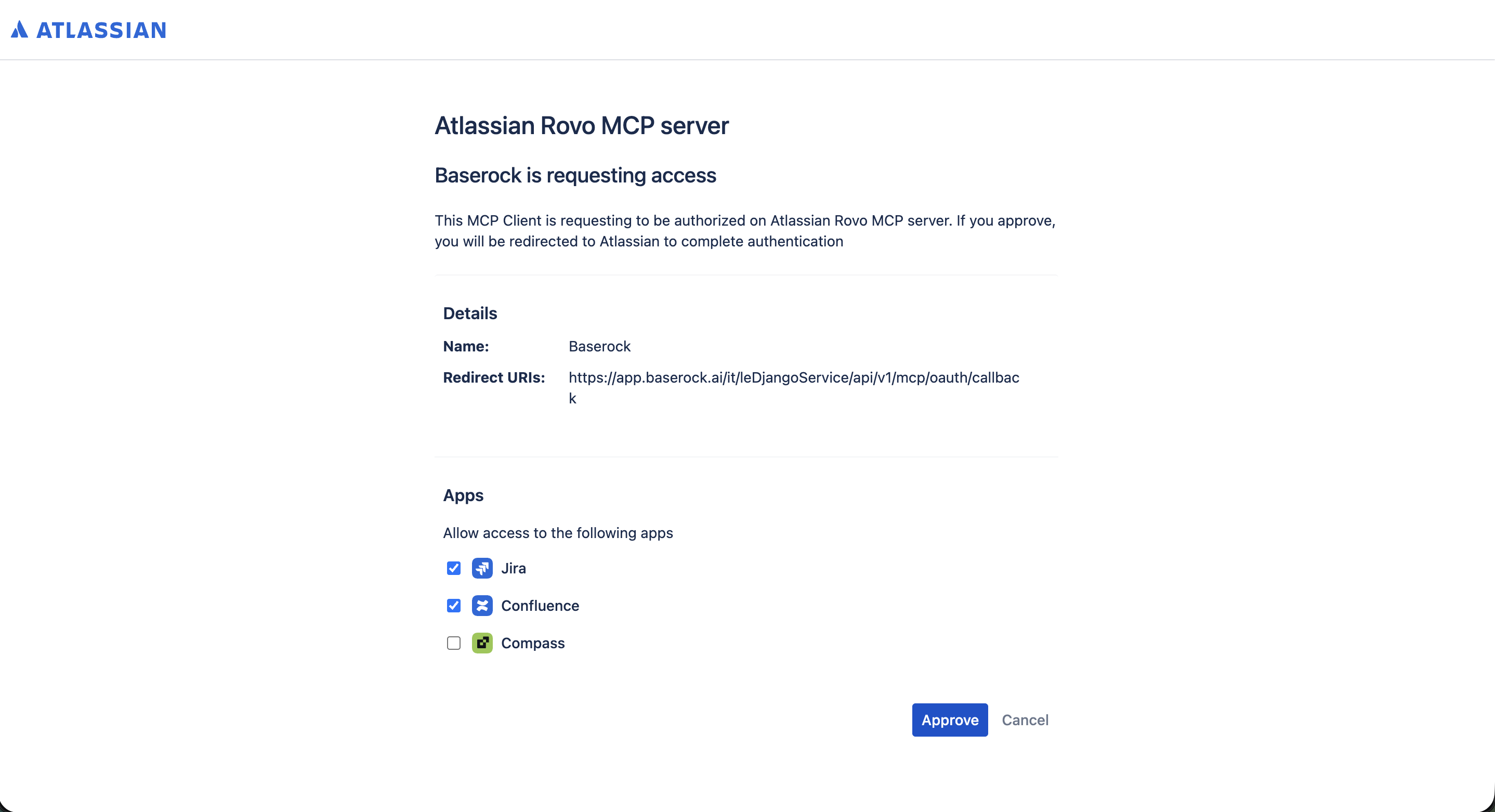
Example: Connect Atlassian (Atlassian Rovo)
If you choose Atlassian from the integrations list, BaseRock will redirect you to Atlassian Rovo to complete the connection flow.
Example: Using MCP Servers during a test run
Below is a high-level example of how MCP Servers can be used as part of an automated test flow:
- Create a resource via API (e.g., a TODO item).
- Store response values as variables for later steps (e.g., ID and name).
- Use an MCP Server call to create a Jira issue based on the created data.
- Use an MCP Server call to create a Notion page that captures the Jira details.
- Validate that the external actions succeeded.
- Clean up any created test data.
Here’s a simplified example (illustrative):
[
  { "step": "api_request", "action": "POST /todos", "store": ["todo-id", "todo-name"] },
  { "step": "mcp_server_call", "provider": "atlassian", "action": "create Jira issue", "inputs": { "summary": "${todo-name}" } },
  { "step": "mcp_server_call", "provider": "notion", "action": "create Notion page", "inputs": { "title": "${todo-name}", "content": "${jira_response}" } },
  { "step": "validate", "action": "assert external actions succeeded" },
  { "step": "api_request", "action": "DELETE /todos/${todo-id}" }
]
In playbooks, refer to an MCP Server using @<server_name>. Example:
Call @AtlassianMCP to create a Jira ticket in project 'DEMO' with summary '${todo-name}'