How to Get Started with BaseRock
This guide covers everything required to configure BaseRock and begin using it for AI-powered test generation. It walks through prerequisites, initial platform setup, and pointers to additional configuration steps.
Prerequisites
Ensure the following are in place before proceeding.
Required for primary setup:
| # | Requirement | Details |
|---|---|---|
| 1 | BaseRock Account | Accounts are provisioned by the BaseRock team. Contact sales@baserock.ai if you need access. |
| 2 | LLM API Key | BaseRock follows a bring-your-own-LLM model. You must supply an API key from a supported provider: Anthropic, OpenAI, Azure, Amazon Bedrock, or Google Vertex. |
| 3 | Source Code Repository Access | BaseRock connects to GitHub, Bitbucket, or GitLab to read source code. Admin-level repository access is required to complete the OAuth integration. If no remote repository is available, local source code can be used instead. |
Required for additional context and BUCT (Business Use Case Testing):
| # | Requirement | Details |
|---|---|---|
| 4 | MCP Servers | Integrations with external tools such as Atlassian, MongoDB, and others are configured via MCP servers. |
| 5 | BRD/PRD Documentation | Business or product requirement documents provide additional context that improves the accuracy of generated test cases. |
Setup Steps
Step 1: Login
For a newly created account, follow these steps to log in:
- Open the Control Plane URL in your browser. For SaaS:
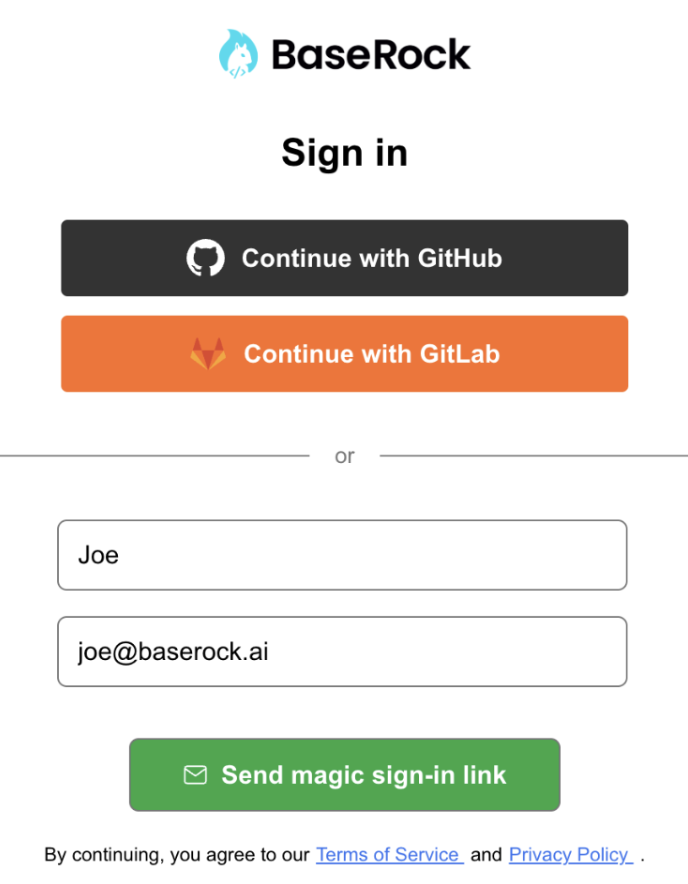
https://app.baserock.ai - Choose to authenticate via GitHub or GitLab (OAuth), or enter your name and email address directly.
- Go to your inbox and open the confirmation email sent by BaseRock AI.
Note: Check your spam folder if the email does not appear in your inbox.
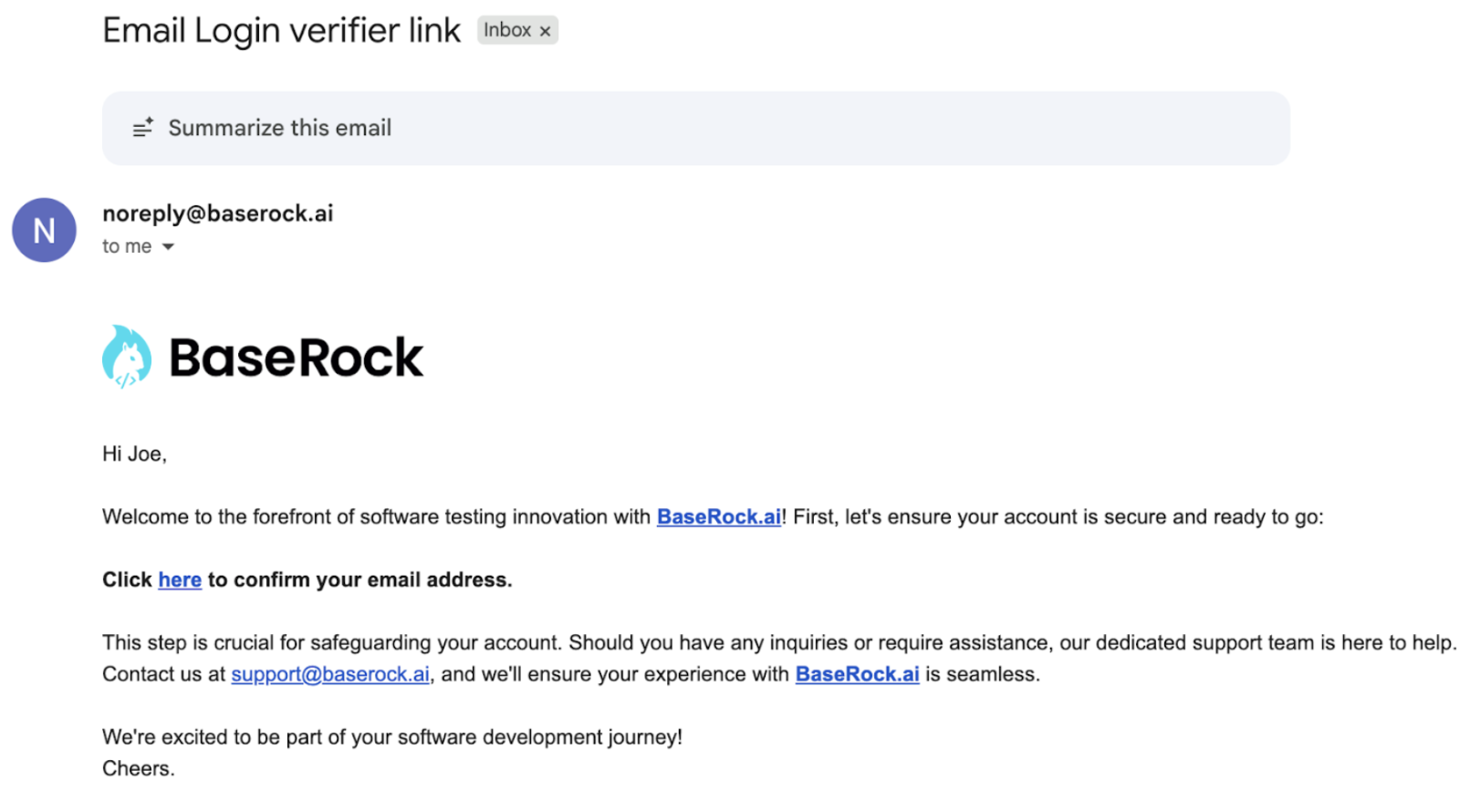
- Click the link under "Click here to confirm your email address".
- Return to the BaseRock AI tab and click the REFRESH button.
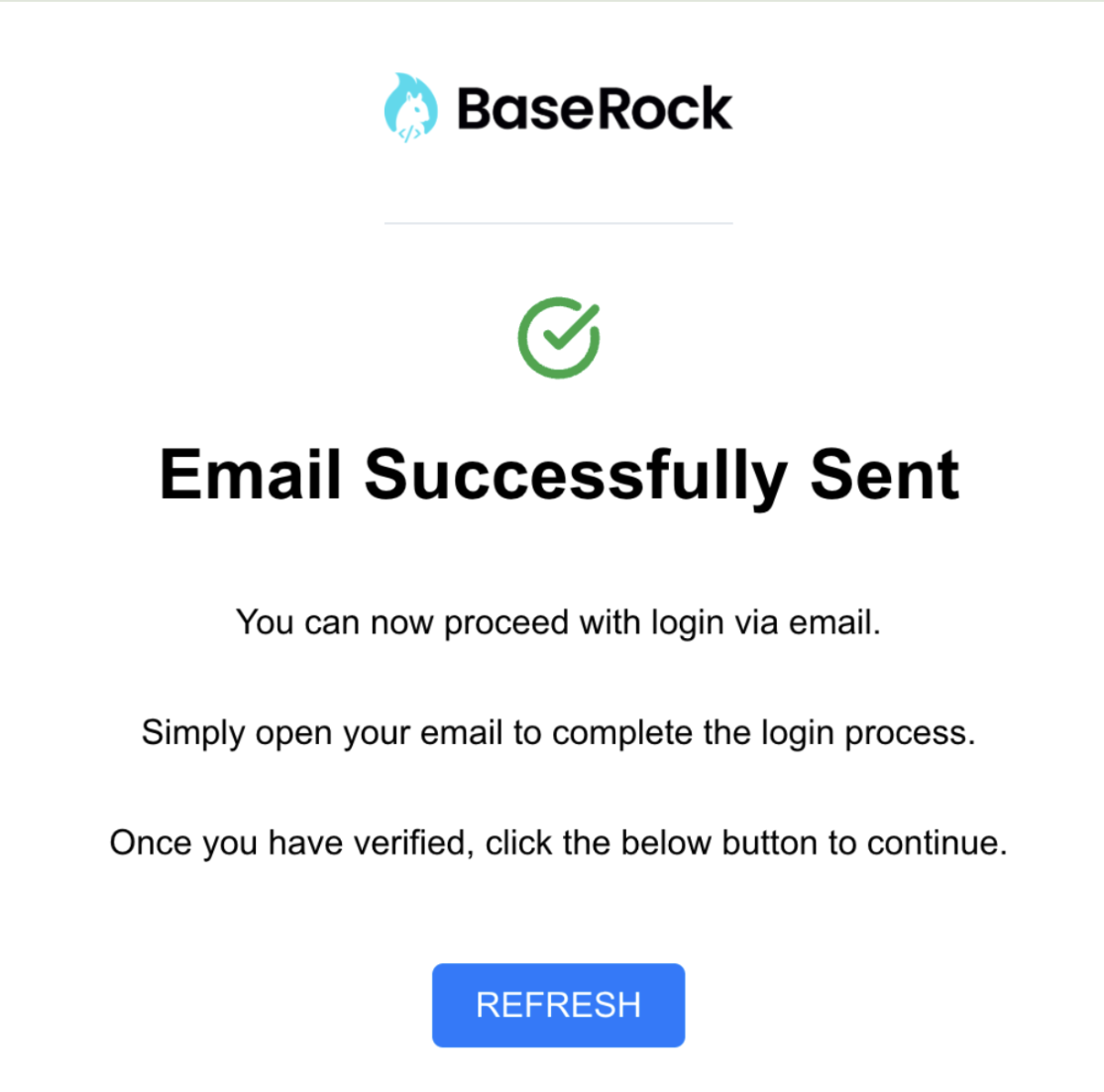
You now have access to the BaseRock AI application.
Step 2: Invite Team Members
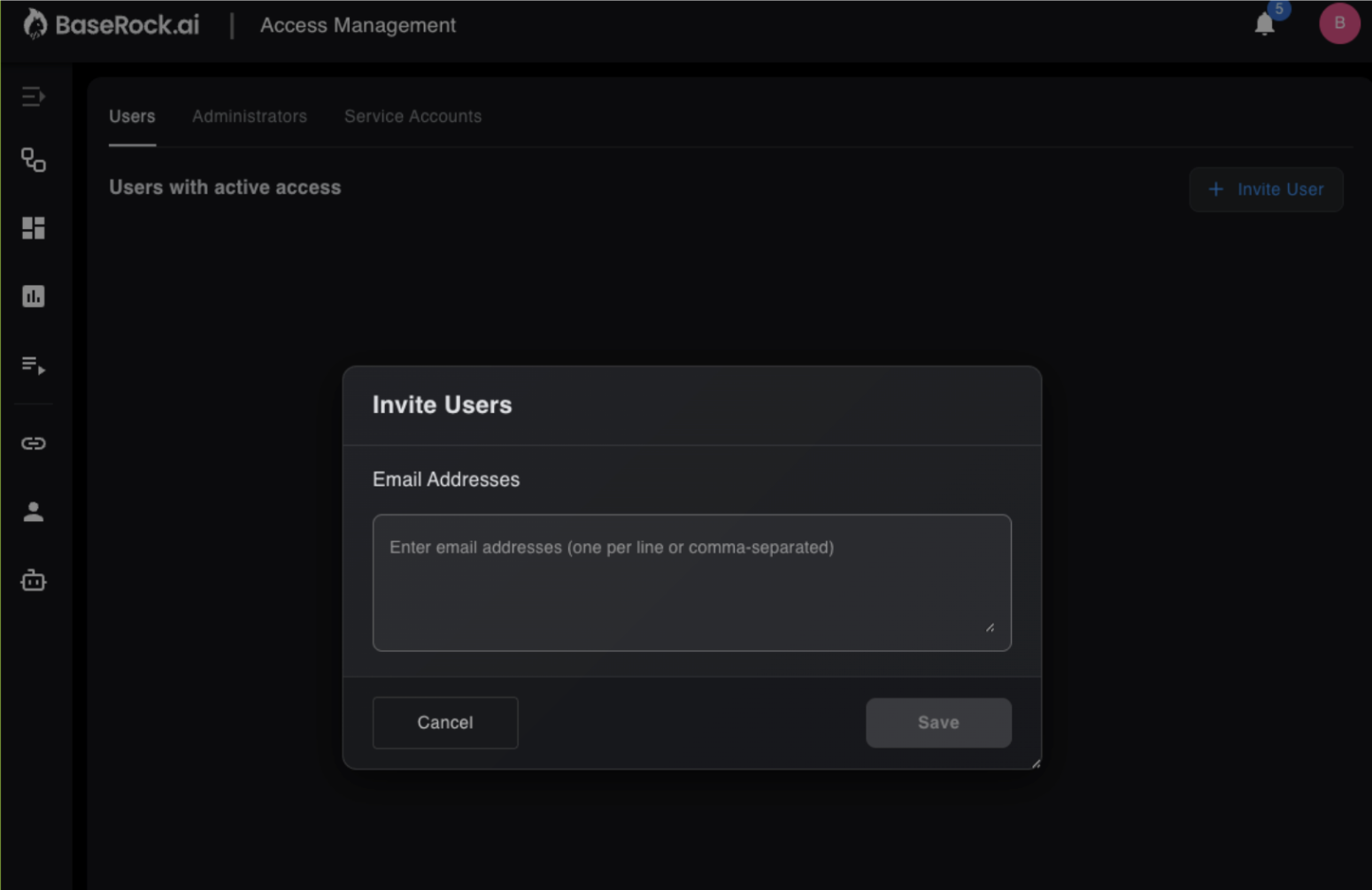
Once logged in, team members can be invited from the settings panel. Each invited user receives an email to complete their registration.
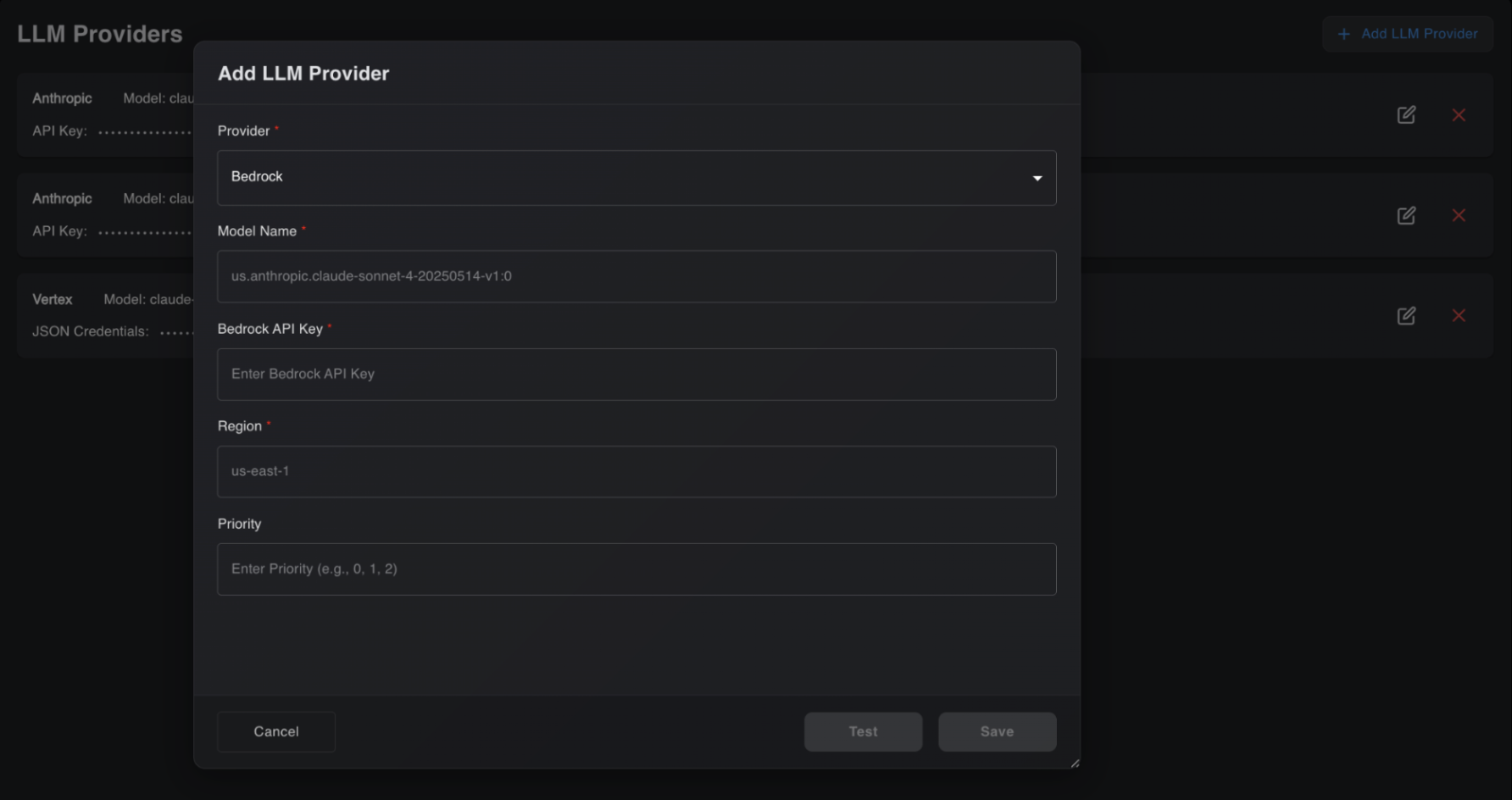
Step 3: Configure LLM Provider
BaseRock uses your own LLM API key to run its AI models. Supported providers include Anthropic, OpenAI, and models available through Azure, Amazon Bedrock, and Google Vertex.
To configure your LLM provider:
- Navigate to the LLM settings in the Control Plane.
- Select your provider and enter the API key.
- Click Test to verify the key is functional before saving.
Step 4: Add Source Code Connector
BaseRock supports Git connectors for GitHub (Cloud), Bitbucket (Cloud and Data Center), and GitLab. Source code access is strictly read-only. BaseRock is SOC Type 2 certified.
Note: A repository admin must approve the OAuth connection during the first-time setup.
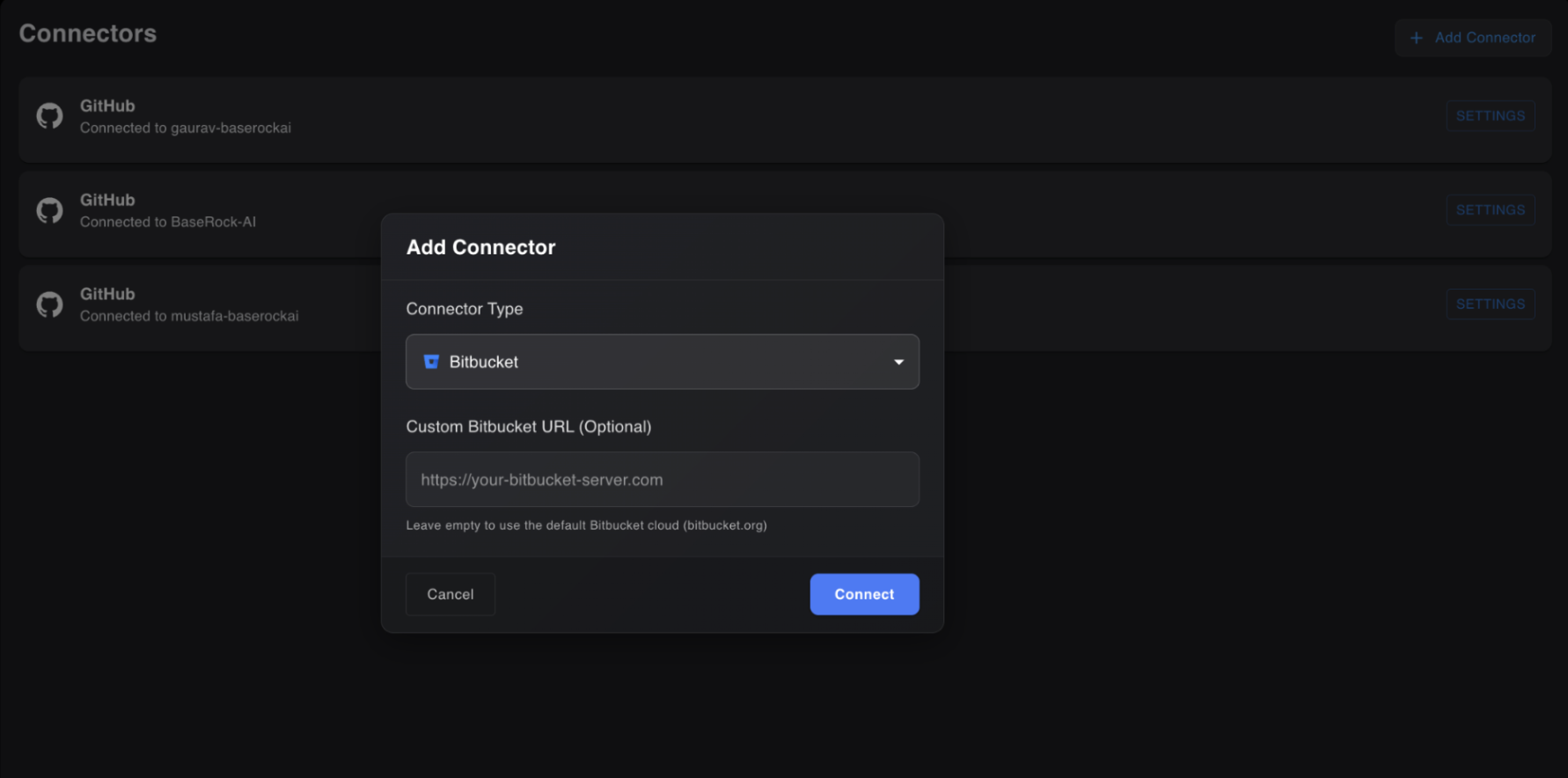
If you prefer not to connect a remote repository, BaseRock also supports onboarding a service directly from local source code on your machine. Refer to Add service from local source code for details.
Next Steps
Once the primary setup is complete, continue with the following:
- MCP Server Setup (Optional) — Configure integrations with external tools such as Atlassian, MongoDB, and other MCP-compatible services to bring in additional context for test generation.
- Service Onboarding — Onboard the application or service you want BaseRock to test.